Tuesday, March 24, 2009

Wednesday, March 4, 2009
Monday, March 2, 2009
Wednesday, February 11, 2009
Tuesday, February 10, 2009
Monday, February 9, 2009
Sunday, February 8, 2009
Dramatica Software - Brainstorming (Part 2)
When you have finished brainstorming, hit the "OK" button and the structure you have selected will be loaded throughout the Dramatica software. For example, in the Story Points window you will see all the dramatic elements you slected have been automatically copied there so you can describe how each will come into play as your story unfolds.
Perhaps the best place to go after brainstorming is the Story Engine window. Though the features of the Story Engine are fully explored in other posts, at this time we're concerned with how to use the Story Engine in conjunction with the Brainstorming window.
The Story Engine doesn't show all the story points Dramatica tracks. Rather, it presents those story points most often focused on by authors so that the core dramatics of the story's structure can be adjusted directly.
As described in Brainstorming Part 1, the structure you chose was not intented to be perfect but simply one which has several to many of the dramatic elements you'd like in your story. When you then move to the Story Engine, you can make choices as to which of the elements you'd like to "lock in" and which you'd like to explore for other options.
Next to every story point, the Story Engine lists the dramatic value that was chosen for that story point. For example, in one structure the story point called Goal might have a value of Obtaining, meaning that the Protagonist in this story is trying to Obtain something. In another structure the Goal might have a value of Becoming, meaning that the Protagonist is trying to become something.
Next to Goal is a lock box symbol. If you click it you are explicitly choosing that you want to keep that value and don't want to change it no matter what. You might also choose to have your Main Character's Resolve to have a vlaue of Steadfast, meaning it will stick by its guns and not change its attitude, morals or purpose.
Once you have locked all the story points you want to keep as is, you click the "Clear" button. When you do, all the other choices in the random story structure are removed, opening up as many options as possible that are dramatically consistent with the choices you locked.
Now you can make additional choices from the options that have opened. And as you do, Dramatica's Story Engine will cross reference the dramatic impact of all the choices you make, gradually limiting the remaining options to only those which are dramatically consistent with what you've already chosen.
But if you are still having trouble making specific choices, just lock down the ones you are sure about and then return to the Brainstorming window where you can Spin The Model again to randomly select dramatic values for all your unlocked story points.
Eventually, you'll have selected all the elements necessary for Dramatica to calculate the rest of the dramatic values for your entire structure.
Dramatica Software - Brainstorming (Part 1)
The Brainstorming area, available through the main Dramatica desktop, is designed to help spur your creativity and help you get over writer's block.
Currently, there are two features in Brainstorming: Spin The Model and the Character Generator. Spin The Model randomly chooses a structure for your story from the 32, 768 available in Dramatica. And the Charcter Generator automatically creates characters, including assigning names, genders and dramatic functions.
When you open the Brainstorming area for the first time, it defaults to the Spin The Model feature. Clicking on Character Generator will bring up those features instead.
We'll begin with Spin The Model. This feature is really easy to use. By simply scrolling down the window, you'll be able to see all of the story points in the currently chosen structure at one time. Initially, they all say "an unchosen item" because you haven't pushed the "Spin" button yet. Still it gives you an opportunity to see what a complete structure will look like and the story points it tracks.
When you push the Spin button, instantly Dramatica selects one of the structures from the 32,768 available. Now the display has changed. You will see that dramatic elements have been assigned to each of the story points.
Now it isn't expected that you'll want to use that specific structure unchanged for your own story. But, if you need some Brainstorming, you can use the artibrarily chosen structure as a jumping off point. You'll then be able to go elsewhere in Dramatica to "lock down" the story points you want to keep and then return to spin the model again to supply random dramatic elements to the other story points you weren't happy with.
Note that the elements chosen by Dramatica are not really completely random. Rather, Dramatica chooses only story points that fit with the choices you've locked down. Therefore, your structure in progress is always sound, consistent, and complete.
In one structure, for example, the goal might be "Learning" and the requirement necessary to achieve Learning might be "Understanding". The Main Character's personal problem might be "Certainty", meaning that fellow is so certain about everything that he gets himself into trouble.
Other story points chosen by Dramatica in that structure might include an Outcome of "Failure" and a Judgment of "Bad", meaning that this story would be a real downer - the characters don't achieve the goal and they feel miserable about it.
By locking down the story points that fit what you have in mind and spinning the model again, the Outome might still come up "Failure" but the Judgment might change to "Good" - meaning that although the characters don't achieve the goal, in they are still happy with the results of their quest.
Just keep locking or unlocking story points as you sculpt your story, using Spin The Model to randomly assign consistent dramatic elements to your unchosen story points. In the end, you'll have started with a structure that is in some ways what you had in mind and honed it down into exactly what you had in mind.
What Is Dramatica Software?
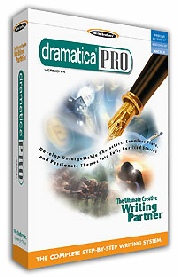
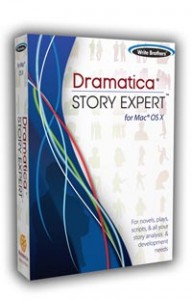
Dramatica software is a story development tool based on the Dramatica Theory of Story. It enables authors to create a perfect underlying structure to their stories by answering questions about their dramatic intent.
Dramatica software is powered by a patented Story Engine based on the story theory. The Story Engine cross references the dramatic impact of an author's input to ensure there are no story holes or inconsistencies.
Dramatica Software is actually able to predict the elements needed for a complete structure, so as an author makes more and more choices, the software starts to fill in other elements not directly chosen but fully determined by the collective impact of the explicit choices.
Dramatica software is always under development as new and even more useful tools are created to implement the underlying theory in practical ways.
For a complete catalog of all Dramatica products, including tutorials and accessories, visit our web site at storymind.com
Dramatica software is powered by a patented Story Engine based on the story theory. The Story Engine cross references the dramatic impact of an author's input to ensure there are no story holes or inconsistencies.
Dramatica Software is actually able to predict the elements needed for a complete structure, so as an author makes more and more choices, the software starts to fill in other elements not directly chosen but fully determined by the collective impact of the explicit choices.
Dramatica software is always under development as new and even more useful tools are created to implement the underlying theory in practical ways.
For a complete catalog of all Dramatica products, including tutorials and accessories, visit our web site at storymind.com
Subscribe to:
Posts (Atom)